
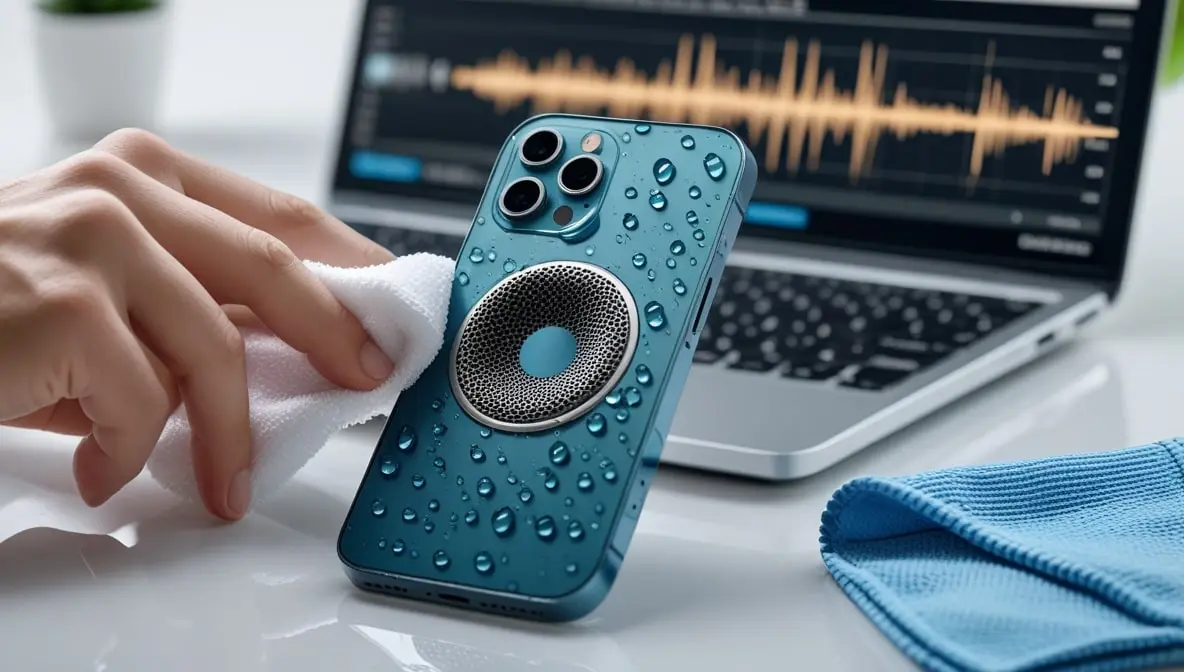
Speaker Not Working After Water Damage? Here’s the Quickest Fix (2025 Updated Guide)
So your phone speaker stopped working right after getting wet? Hey, don’t worry. I’m here with you. Water damage is one of the most common causes of muffled, distorted, or completely silent phone speakers. But here’s the good news: in most cases, you can fix it yourself — safely — if you follow the right steps.
Let’s go through everything you need to know and the exact steps to bring your phone’s speaker back to life (tested, simple, and based on real experience).
Step 1: Don’t rush — turn the phone off immediately
The biggest mistake most people make after a phone gets wet is turning the volume up or playing sound to “test” if it still works. That’s dangerous because sending current through wet circuits can fry the speaker or audio chip instantly.
Here’s a better idea:
- Power it off completely.
- Unplug any cables or earphones.
- Remove the SIM and memory card if possible.
- Don’t charge it yet — never plug in a wet phone.
Tip: If your phone was splashed (not fully submerged), drying fast may save it completely. But if it fell in water, go step-by-step below.
Step 2: Dry the exterior — the right way
Grab a clean microfiber cloth or tissue, and gently dab around:
- Speaker grills
- Charging port
- Mic holes
- Buttons
Avoid shaking the phone too aggressively; it can push water deeper.
Don’t use a hairdryer or oven heat.
Excess heat damages speaker membranes, adhesives, and seals — especially on newer waterproof phones.
If you need to push out water, use room temperature air or a cool fan (not hot).
Step 3: Use a water-eject sound (works surprisingly well)
Most modern phones — even waterproof ones — can trap micro droplets of water inside the speaker mesh. That’s what causes that “muffled” or “low volume” sound. You can actually use sound vibrations to push the water out.
Here’s how:
- Go to your browser and open Speaker Cleaner.
- Tap “Clean My Speaker” — it’ll play special frequencies that vibrate the speaker membrane.
- Let it run 2–3 times at full volume (screen facing down).
Tested tip: Tilt your phone slightly sideways while running the tool. You’ll often see small moisture spots or hear the sound clearing up mid-cycle.
This simple trick often revives 70–80% of phones that just got splashed or dropped in light water.
Step 4: Let it dry naturally (patience pays)
After ejecting moisture, leave your phone in a dry, open space for at least 6–12 hours.
For slightly heavier cases (e.g, pool or rain exposure):
- Place your phone on a clean towel.
- Keep it under a fan or near a dehumidifier.
- You can also place silica gel packets (those small anti-moisture bags) around it.
Don’t bury it in rice — that’s a myth now.
Rice absorbs some humidity, but it can leave dust or starch particles that damage internal parts later.
Step 5: Test your speaker properly
After your phone feels completely dry:
- Please turn it on.
- Play music or a YouTube video at medium volume.
- If it still sounds muffled, repeat the sound cleaning step again.
Also test:
- Test the microphone by recording your voice.
- Ear speaker (by making a call)
- Try using Bluetooth headphones and regular wired headphones. If the sound is fine on both, then the problem isn’t with your phone’s software.
If your mic is okay but things still sound muffled, the small speaker grill might still be wet or dirty. You’ll probably need to clean it more thoroughly.
Step 6: Clean the speaker grill (gentle but effective)
After water dries, the minerals and dirt it leaves behind can muffle the sound.
Do this carefully:
- Use a soft toothbrush or a dry cotton swab to clean the speaker grill gently.
- You can lightly dip the tip in isopropyl alcohol (70%), then dab gently to dissolve residue (not drip it in).
- Avoid pressing too hard — you don’t want to push dirt into the mesh.
Once done, let it dry for 15–20 minutes and test again. You’ll notice a clearer, sharper sound if clogging was the issue.
Step 7: Reset sound settings (software recovery)
If everything looks clean, but the audio is still not working:
- Go to Settings → Sound → Reset sound settings (Android)
- Or Settings → General → Transfer or Reset iPhone → Reset All Settings (iPhone)
Sometimes, after liquid exposure, temporary sound-driver glitches happen — a reset can fix those.
Also, check Bluetooth and Headphone mode status.
Sometimes your phone gets stuck thinking headphones are still plugged in. Just plug in a real pair and then unplug them to fix it.
Step 8: When to get professional help
Look, if none of those fixes worked and the speaker is totally silent, the water damage is likely permanent.
In that case:
- Visit a trusted repair technician.
- Ask them to check for oxidation or corrosion under the speaker or logic board.
- Most cases just need ultrasonic cleaning — not a full part replacement.
If your phone is still under warranty and it’s water-resistant (IP67/IP68), check if the brand covers limited liquid damage. Some do, especially if moisture indicators are intact.
Step 9: Prevent it from happening again
Here’s how to avoid repeating the nightmare:
- Use a waterproof case if you’re near pools or beaches.
- Keep a dust/water plug on your charging port.
- Don’t charge your phone right after any water contact — even light rain.
- Run Speaker Cleaner after every heavy workout or moisture exposure — it helps keep the mesh clean and sound crisp.
Pro Tips from Real Testing
- If your sound fades during a call after water exposure, it’s usually mic moisture, not speaker failure — run a sound test using the tool above.
- If distortion comes and goes, the diaphragm might be partially wet; repeat the sound-cleaning process until it evens out.
- If your phone vibrates but has no sound, check if it’s in “Headphone mode” — very common after water drops in the jack.
Final Words
If your speaker stopped working after water damage, don’t jump straight to the service center. With some patience, the right tools, and a proper cleaning cycle, most speakers recover fully without opening the device.
So next time your phone meets water — don’t panic, just follow this guide step by step, use the sound-cleaning tool, and your speaker will likely start working like new again.